The fastest way to transfer data to Galaxy S27 Ultra is Samsung Smart Switch during first-time setup. Turn on the phone, scan the QR code with your old phone, choose Wirelessly or Cable, pick what to copy, and tap Next. This works from both Android phones and iPhones.
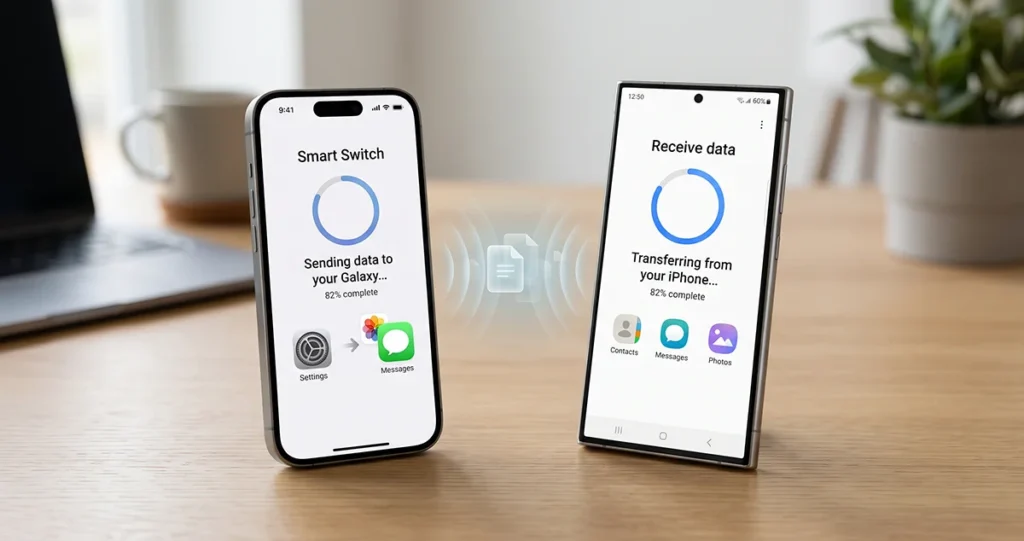
Whether you’re upgrading from another Samsung Galaxy, switching from an Android phone, or moving from an iPhone, Smart Switch provides wireless, USB cable, and computer-based transfer options. This guide explains how to prepare both devices, choose the best transfer method, and move your important information to your new Galaxy S27 Ultra.
What Is Samsung Smart Switch?
Samsung Smart Switch is a data migration tool that helps users transfer information from an existing smartphone to a new Samsung Galaxy device.
The application supports transfers from compatible Android and iOS devices. Depending on the source phone, connection method, and software version, you can move contacts, messages, photos, videos, music, documents, calendar events, notes, and selected device settings.
Smart Switch is generally preinstalled on Galaxy smartphones. You can also download it from the Google Play Store or Galaxy Store when necessary.
The application offers three main transfer options:
- Wireless transfer: Move data between two phones without connecting a cable.
- USB cable transfer: Connect both smartphones directly for a wired transfer.
- PC or Mac transfer: Back up your old phone to a computer and restore the backup to your new Galaxy.
What Should You Prepare Before Transferring Data?
Before starting the transfer process, prepare both smartphones to avoid interruptions.
Here are some important things to check:
- Charge both smartphones sufficiently. A high battery level is recommended for large transfers.
- Update Smart Switch on both devices when an update is available.
- Make sure the Galaxy S27 Ultra has enough available storage.
- Keep your old smartphone unlocked and accessible.
- Connect both devices to a stable Wi-Fi network if using wireless transfer.
- Remember your Google and Samsung account credentials.
- Back up important information before starting the migration.
If you are moving from an iPhone, make sure your important photos, contacts, and other information are synchronized with iCloud or otherwise backed up.
How to Transfer Data Wirelessly to Galaxy S27 Ultra
Wireless transfer is a convenient option if you don’t have a compatible USB cable. It allows you to move information between smartphones without physically connecting them.
Follow these steps:
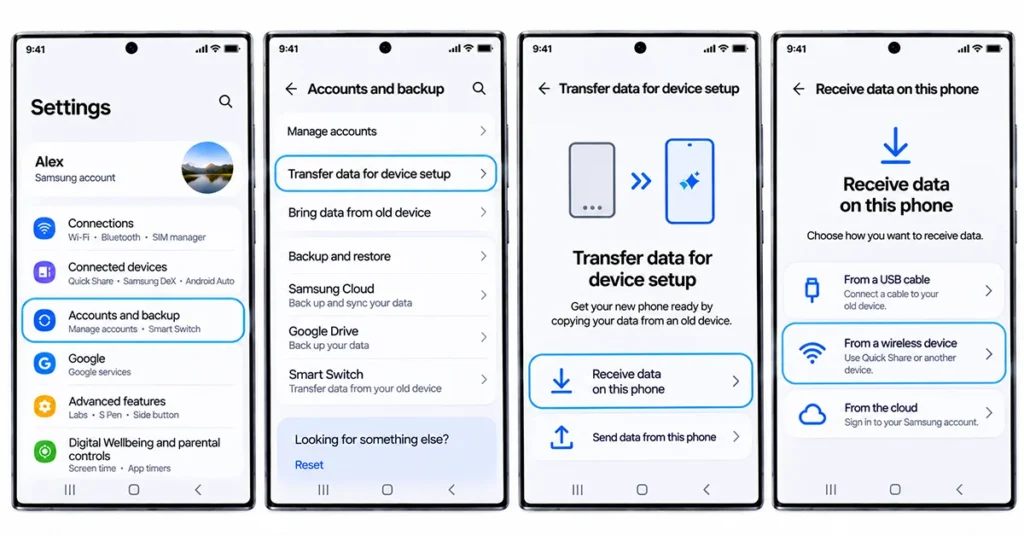
- Open Settings on your Galaxy S27 Ultra.
- Navigate to Accounts and backup.
- Select Bring data from old device or open Smart Switch.
- Tap Receive data.
- Choose Galaxy/Android as the source device.
- Select Wireless as the connection method.
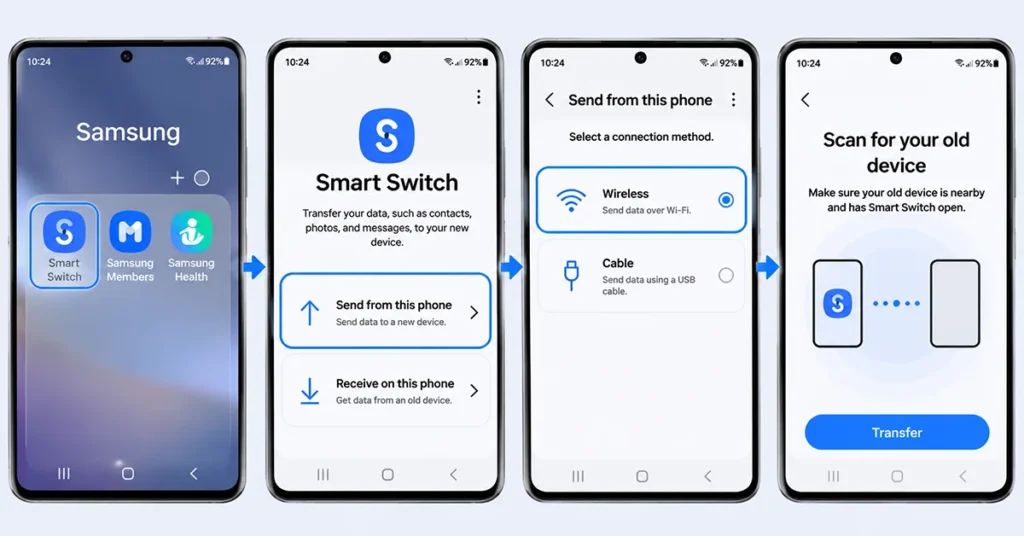
- Open Smart Switch on your old smartphone.
- Select Send from this phone and choose Wireless.
- Follow the on-screen instructions to connect both devices.
- Allow Smart Switch to scan the old smartphone.
- Select the information you want to transfer.
- Tap Transfer and wait until the process finishes.
Keep both smartphones close together and avoid using them for other activities during the transfer.
Once completed, tap Done and check the transferred information on your Galaxy S27 Ultra.
How to Transfer Data to Galaxy S27 Ultra Using a USB Cable
A wired connection is another option, especially when you want a direct connection between your old smartphone and the Galaxy S27 Ultra.
Depending on the source device, you may need a compatible USB-C cable or an appropriate USB adapter.
Follow these instructions:
- Connect your old smartphone to the Galaxy S27 Ultra using a compatible USB cable.
- Open Smart Switch on your new Galaxy device.
- Select Receive data.
- Choose Galaxy/Android or the appropriate source device.
- Select Cable as the connection method.
- Follow the instructions displayed on both smartphones.
- Wait while Smart Switch scans the old device.
- Choose the contacts, messages, photos, videos, apps, and other available information you want to move.
- Tap Transfer to begin.
- Keep the cable connected until the process finishes.
When the transfer is complete, select Done and review your newly transferred files.
For large transfers, make sure both phones have sufficient battery power before starting.
How to Transfer Data from iPhone to Galaxy S27 Ultra
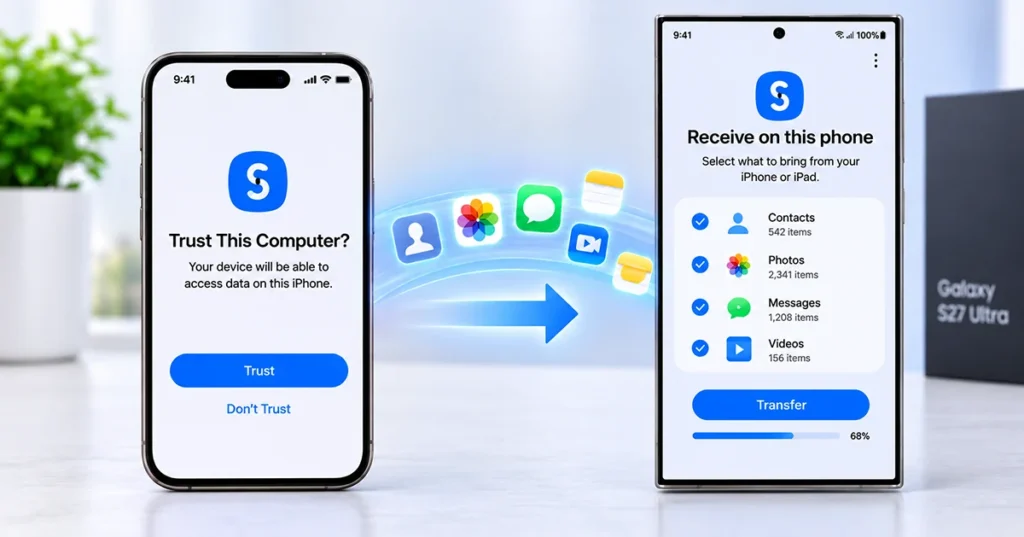
Switching from an iPhone to the Galaxy S27 Ultra is possible using Samsung Smart Switch.
You can transfer supported information through a cable or compatible wireless and iCloud options.
Method 1: Transfer Using a USB Cable
- Open Smart Switch on your Galaxy S27 Ultra.
- Select Receive data.
- Choose iPhone/iPad.
- Connect your iPhone to the Galaxy S27 Ultra using a compatible cable.
- When prompted on your iPhone, tap Trust.
- Allow the devices to establish a connection.
- Select the information you want to transfer.
- Tap Transfer and wait for the process to finish.
Method 2: Transfer Using iCloud
If you prefer not to connect both devices with a cable, you can use the supported iCloud import option.
- Open Smart Switch on your Galaxy S27 Ultra.
- Tap Receive data.
- Select iPhone/iPad.
- Choose Get data from iCloud if the option is available.
- Sign in using your Apple account credentials.
- Complete the required verification.
- Select the information you want to import.
- Tap Transfer and wait for the process to finish.
The available transfer options depend on the software version and supported data types. Some information and iPhone applications may require separate migration steps.
Which Data Can You Transfer to Galaxy S27 Ultra?
Samsung Smart Switch supports different types of information depending on the source smartphone and connection method.
The following table summarizes common data categories.
| Data type | Transfer support |
|---|---|
| Contacts | Supported |
| Photos and videos | Supported |
| Messages | Supported for compatible formats |
| Call history | Supported on compatible devices |
| Calendar events | Supported |
| Documents | Supported |
| Music | Supported for compatible files |
| Notes | Supported for compatible apps and devices |
| Applications | Compatible applications |
| Device settings | Selected settings |
| Wi-Fi information | Supported in compatible transfers |
| App login information | May require manual sign-in |
Not every application or data category can be transferred. Encrypted information, protected application data, and certain third-party content may require separate backup or restoration procedures.
For example, WhatsApp conversations should be migrated using WhatsApp’s supported chat transfer or backup process rather than assuming that a standard Smart Switch transfer will move every conversation.
Smart Switch Transfer Methods Compared
Choosing the right transfer method can make the migration process easier.
| Transfer method | Main advantage | Best for |
|---|---|---|
| Wireless | No physical cable required | Everyday transfers |
| USB cable | Direct connection | Large or important transfers |
| PC or Mac | Creates a computer backup | Backup and restoration |
| iCloud | Imports supported iPhone data | iPhone users |
If you have a large amount of information, consider using a wired connection or computer backup. Wireless transfer is convenient when you want to keep both smartphones connected to their chargers.
How to Fix Samsung Smart Switch Transfer Problems
Sometimes Smart Switch may not recognize an old smartphone or complete the transfer successfully.
Try these troubleshooting steps:
1. Restart both smartphones
Restarting both devices can resolve temporary connection issues.
2. Update Smart Switch
Install available updates to ensure both smartphones are using compatible software.
3. Check available storage
Make sure your Galaxy S27 Ultra has sufficient space for the selected files.
4. Check the USB connection
If you’re using a cable, reconnect both devices and check whether the cable supports data transfer rather than charging only.
5. Keep devices close together
For wireless transfers, keep both smartphones nearby and avoid interruptions.
6. Transfer smaller data groups
If a large transfer repeatedly fails, try moving selected categories separately.
7. Check account synchronization
Some contacts, photos, and application information may be synchronized through Google or Apple services rather than transferred directly.
Frequently Asked Questions
Can I transfer everything from my old phone to Galaxy S27 Ultra?
Smart Switch can transfer many types of personal information, including contacts, messages, photos, videos, documents, and selected settings. However, some encrypted data, application information, and account credentials may require separate restoration.
Does Samsung Smart Switch delete data from my old phone?
No. Smart Switch copies supported information to your new Galaxy device. It does not normally delete the original information from your old smartphone.
Can I transfer data from iPhone to Galaxy S27 Ultra?
Yes. You can use Samsung Smart Switch to transfer supported information from an iPhone using a compatible cable or supported iCloud and wireless options.
How long does it take to transfer data?
Transfer time depends on the amount of information, connection method, device performance, and network conditions. Moving a large photo and video library generally takes longer than transferring contacts and messages.
Do I need an internet connection to use Smart Switch?
Not every transfer requires an active internet connection. Direct wireless and cable transfers can work without internet access, although downloading updates, restoring cloud backups, and synchronizing accounts may require connectivity.
Final Thoughts
Transferring data to Galaxy S27 Ultra is straightforward with Samsung Smart Switch. You can move information from an old Galaxy, another Android smartphone, or an iPhone using wireless, USB cable, or computer-based methods.
For the easiest experience, prepare both devices, select the appropriate transfer method, and carefully review the available data categories before starting. After the transfer, check your contacts, photos, messages, applications, and important accounts to make sure everything you need is ready on your new Galaxy S27 Ultra.
Reference:
- Samsung – Transfer content with Samsung Smart Switch.
- Samsung – Transfer data from iPhone to Galaxy.
2 thoughts on “Transfer Data to Galaxy S27 Ultra: Complete Samsung Smart Switch Guide”