Moving to a new smartphone does not mean losing your WhatsApp conversations. You can transfer WhatsApp to Galaxy S27 Ultra, including chat history, photos, videos, and documents, using WhatsApp’s built-in migration features and supported Samsung Smart Switch options.
The transfer method depends on your previous phone. If you are switching from another Android device, you can restore your WhatsApp backup through Google Drive or use the direct transfer option when available. If you are moving from an iPhone, a cable-based transfer through Samsung Smart Switch is the recommended approach.
Before starting, make sure you have access to your old phone, a stable internet connection, sufficient storage, and the phone number associated with your WhatsApp account.
What You Need Before Transferring WhatsApp Data
Preparing both devices helps prevent interrupted transfers and missing conversations.
Check the following requirements before moving your WhatsApp account to the Galaxy S27 Ultra:
| Requirement | Why It Matters |
|---|---|
| Old smartphone | Provides access to existing WhatsApp chats |
| Galaxy S27 Ultra | Receives your WhatsApp data |
| Same phone number | Helps verify your existing WhatsApp account |
| Google Account | Required for Google Drive backup restoration |
| Updated WhatsApp | Helps prevent compatibility problems |
| Stable Wi-Fi | Supports backup and data migration |
| USB-C cable | Needed for supported iPhone-to-Samsung transfers |
| Sufficient storage | Accommodates transferred chats and media |
It is also recommended to create a fresh WhatsApp backup before starting. Open WhatsApp on your old phone and navigate to Settings > Chats > Chat backup > Back up.
Wait until the backup finishes before moving to the next step.
How to Transfer WhatsApp Data from Android to Galaxy S27 Ultra
If your previous smartphone runs Android, you can move WhatsApp conversations using a Google Account backup or WhatsApp’s direct transfer option.
Method 1: Transfer WhatsApp Chats Directly
The direct transfer method allows you to move conversations between compatible Android devices without relying on an existing Google Drive backup.
Follow these steps:
- Connect both Android phones to the same stable Wi-Fi network.
- Open WhatsApp on your old smartphone.
- Navigate to Settings > Chats > Transfer chats.
- Tap Start or follow the transfer instructions displayed on the screen.
- Open WhatsApp on your Galaxy S27 Ultra.
- Verify your account using the same phone number.
- Select the option to transfer chat history from your old phone when prompted.
- Scan the QR code displayed on the new device using your old phone.
- Keep both devices unlocked and wait for the transfer to finish.
The available prompts may vary depending on your WhatsApp version. Follow the instructions displayed on both devices.
Method 2: Restore WhatsApp Using Google Drive
Google Drive is another convenient option for transferring WhatsApp conversations from an old Android phone.
On your old Android phone:
- Open WhatsApp.
- Tap the three-dot menu in the upper-right corner.
- Select Settings.
- Tap Chats > Chat backup.
- Choose your Google Account.
- Tap Back up and wait for the process to finish.
On your Galaxy S27 Ultra:
- Sign in using the same Google Account used for the backup.
- Download WhatsApp from the Google Play Store.
- Open WhatsApp and verify your existing phone number.
- Wait for WhatsApp to detect your Google Drive backup.
- Tap Restore when prompted.
- Allow WhatsApp to restore your conversations and media.
- Tap Next after the restoration finishes.
Your previous conversations should appear in WhatsApp once the restoration is complete. Photos and videos may continue downloading in the background.
Google recommends using the same Google Account on both devices and restoring from the latest available backup.
How to Transfer WhatsApp from iPhone to Galaxy S27 Ultra
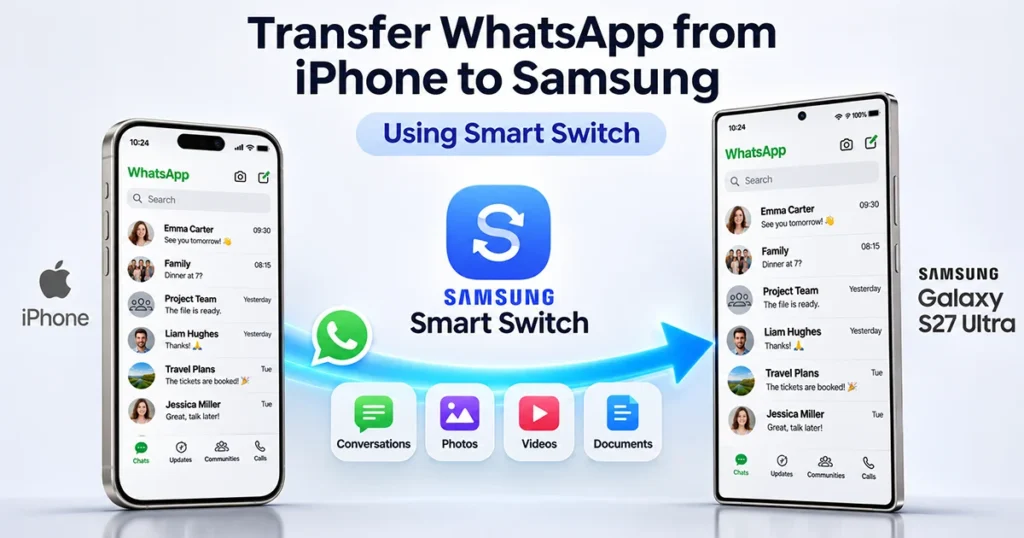
If you are switching from an iPhone to the Galaxy S27 Ultra, use Samsung Smart Switch and a compatible USB cable to migrate WhatsApp data.
This method supports transferring WhatsApp conversations and associated media, subject to device, software, and WhatsApp compatibility requirements.
Follow these steps:
- Turn on your Galaxy S27 Ultra and begin the initial device setup.
- Open Samsung Smart Switch.
- Select Receive on this phone.
- Choose iPhone or iPad as the source device.
- Select the cable transfer option.
- Connect your iPhone to the Galaxy S27 Ultra using a compatible USB cable.
- Tap Trust on your iPhone if prompted.
- Follow the Smart Switch instructions to transfer compatible content.
- When the WhatsApp transfer option appears, select Transfer.
- Follow the on-screen instructions, including scanning a QR code if requested.
- Wait until the WhatsApp migration finishes.
- Open WhatsApp on your Galaxy S27 Ultra and verify the same phone number.
Do not activate WhatsApp on the new phone before completing the migration if the transfer instructions require WhatsApp to remain inactive.
Also, keep both devices connected and avoid disconnecting the cable until the process finishes.
Important: If you have already completed the initial Galaxy setup, the available migration options may differ. Some iPhone-to-Android transfer methods require the new device to be in its initial setup state. Check the current WhatsApp and Samsung instructions before resetting your phone.
Pro tip: don’t open WhatsApp on the new phone until the import step. Samsung’s FAQ says history can’t be transferred once the account has been activated on the new device. If that already happened, uninstall WhatsApp on your new Galaxy S27 Ultra and start the process again.
What WhatsApp Data Can You Transfer?
The amount of information transferred depends on the migration method and the compatibility of your devices.
| WhatsApp Data | Transfer Support |
|---|---|
| Individual chats | Supported |
| Group conversations | Supported |
| Chat history | Supported |
| Photos | Supported |
| Videos | Supported |
| Voice messages | Supported where included in chat migration |
| Documents | Supported where included in chat migration |
| Account information | Supported by compatible migration methods |
| Call history | May not transfer |
| Payment messages | Not supported by some migration methods |
Keep in mind that WhatsApp does not guarantee that every item will transfer successfully in every situation. Check your conversations and important media after migration.
How to Fix WhatsApp Transfer Problems
If you cannot transfer WhatsApp to Galaxy S27 Ultra, try these troubleshooting solutions.
1. WhatsApp backup is not detected
Make sure the Galaxy S27 Ultra is signed in to the same Google Account used to create the backup. Also, confirm that the backup completed successfully on your previous phone.
2. WhatsApp verification fails
Check that your SIM card or phone number can receive verification codes. Use the same phone number associated with your previous WhatsApp account.
3. WhatsApp transfer gets interrupted
Keep both devices charged, connected to a stable network, and close unnecessary applications. For cable transfers, check the cable and connectors.
4. Some photos and videos are missing
Large media files may take longer to restore. Wait for the download to finish and check the backup date on your old phone.
5. WhatsApp is already active on the new phone
You may need to reinstall WhatsApp and repeat the restoration process. Remember that restoring an older backup cannot merge it with new conversations created on the Galaxy S27 Ultra.
Avoid using unverified third-party migration applications because they can introduce compatibility, privacy, and data-loss risks.
Frequently Asked Questions
Can I transfer WhatsApp chats to Galaxy S27 Ultra without Google Drive?
Yes. You can use WhatsApp’s direct chat transfer feature when supported by both Android devices. For iPhone-to-Samsung migration, use the supported cable-based Smart Switch process.
Does Samsung Smart Switch transfer WhatsApp messages?
Smart Switch supports WhatsApp data migration in certain iPhone-to-Samsung transfers. However, Samsung’s Android-to-Android Smart Switch documentation distinguishes app transfers from WhatsApp chat-history transfers. Use WhatsApp’s direct transfer or Google Drive restoration for Android migration.
Will I lose my WhatsApp conversations when changing phones?
No, provided that you complete a supported transfer or restore from a valid backup. Always create a fresh backup before switching devices.
Can I transfer WhatsApp to Galaxy S27 Ultra with a different phone number?
You should change your WhatsApp number on your old phone before transferring your chat history. WhatsApp’s standard migration process requires the same number on both devices.
How long does WhatsApp data transfer take?
Transfer time depends on the size of your chat history, the amount of media, network speed, and the connection method. Large backups containing many videos and photos can take considerably longer.
Final Thoughts
Transferring WhatsApp to Galaxy S27 Ultra is straightforward when you choose the correct migration method. Android users can restore their conversations using Google Drive or WhatsApp’s direct transfer feature, while iPhone users can use Samsung Smart Switch with a compatible cable.
Before switching, create a fresh backup, verify your phone number, and make sure both devices have sufficient battery and storage. Once the transfer is complete, check your important conversations, photos, and documents to confirm that everything you need is available on your new Galaxy phone.
Reference:
- Google Android Help – Transfer WhatsApp data to a new Android.
- Samsung Support – Back up or restore WhatsApp data.
1 thought on “How to Transfer WhatsApp Data to Galaxy S27 Ultra: Complete Step-by-Step Guide”