If your Galaxy S27 Ultra is not charging, try three things first: use a different certified USB-C cable and adapter, check the charging port for lint or moisture, and force restart the phone by holding Power and Volume Down for about 10 seconds.
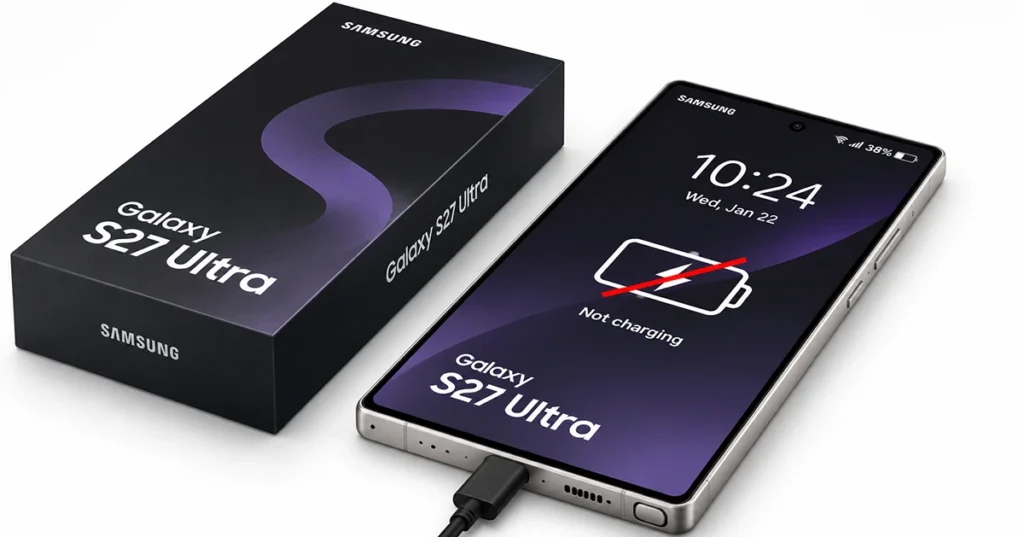
These steps fix most charging failures in under five minutes. If the phone still won’t charge, the full list below covers settings, software, and hardware.
Why Is My Galaxy S27 Ultra Not Charging?
A Galaxy S27 Ultra usually stops charging because of a faulty cable or adapter, debris or moisture in the USB-C port, a software glitch, high temperature, or a charging setting that limits power.
Samsung’s own support page names the same group: the battery, cable, power adapter, wireless charger, charging port, moisture detection, and device temperature.
True hardware failure is the least common cause, so start with the simple checks.
Match your symptom to a fix:
| Symptom | Most likely cause | Fastest fix |
| Nothing happens when plugged in | Bad cable, adapter, or outlet | Fix 1 |
| Charges only if you wiggle the cable | Lint or a worn port | Fix 2 |
| “Moisture detected” warning | Water or sweat in the port | Fix 2 |
| Stops charging below 100% | Battery protection is on | Fix 5 |
| Charges very slowly | Weak adapter, heat, or fast charging off | Fixes 1, 4, 5 |
| Wired works, wireless doesn’t | Pad, case, or alignment | Fix 6 |
| Stopped after a software update | Software bug | Fixes 3, 7 |
| Black screen, no response | Deeply drained battery or freeze | Charge 30 minutes, then Fix 3 |
9 Ways to Fix a Galaxy S27 Ultra That Won’t Charge
Try these solutions in order, starting with the simplest checks.
1. Swap the cable, adapter, and outlet
Damaged or non-certified cables are the most common culprit. Try a different USB-C cable, a different adapter, and a different wall outlet, changing one item at a time so you can isolate the faulty part.
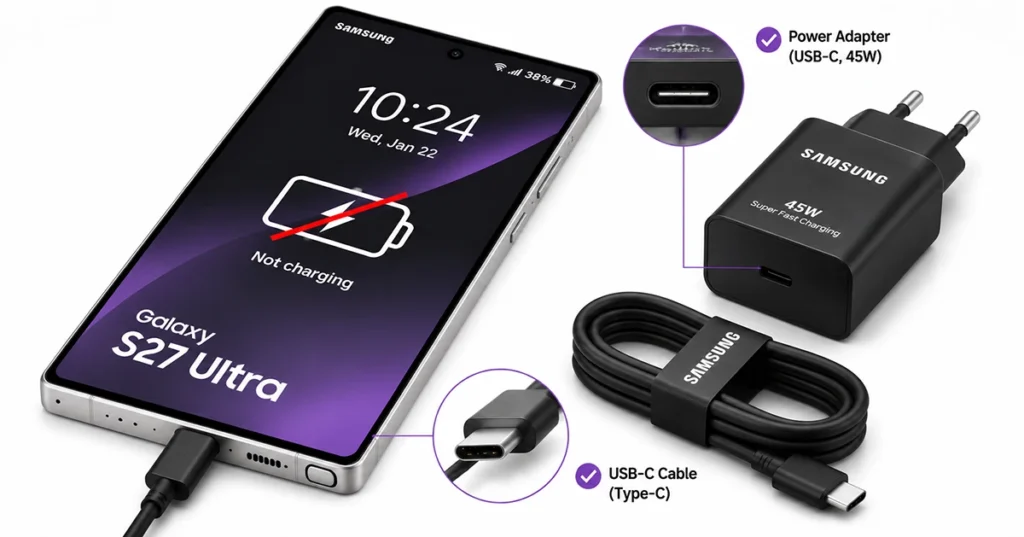
Avoid charging from a computer’s USB port, which often supplies too little power.
Samsung recommends approved chargers, and recent Galaxy flagships ship without a power adapter in the box, so confirm yours is compatible with the S27 Ultra’s rated wattage.
2. Inspect and clean the charging port
Turn the phone off and shine a flashlight into the USB-C port. Pocket lint compacts at the bottom and stops the connector from seating fully. Gently pick it out with a wooden or plastic toothpick.
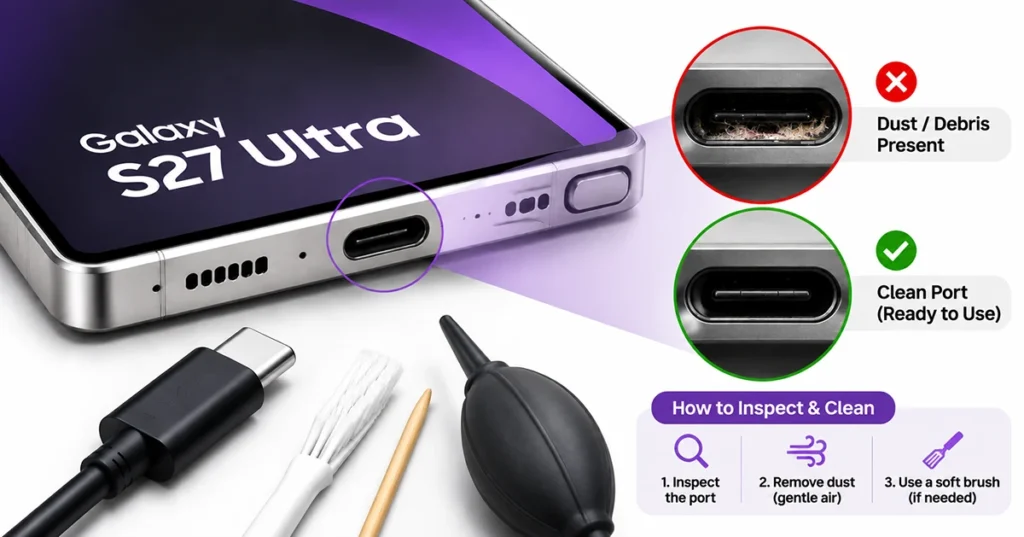
Never use metal, which can short the pins or scratch them.
If you see a moisture warning, unplug everything and let the phone dry. Samsung stresses that the port must be completely dry before charging, even on water-resistant Galaxy phones.
Don’t use a charger until the warning clears.
3. Force restart the phone
Hold Power and Volume Down for at least 10 seconds until the Samsung logo appears. This clears temporary software glitches and doesn’t delete data.
It’s also the first thing to try if the screen is black and the phone seems dead.
4. Let the phone cool down
Heat triggers protection that slows or pauses charging.
Remove the case, stop gaming or recording video, move out of direct sun, and wait 10-15 minutes before plugging in again.
Samsung lists high device temperature among the main reasons a Galaxy appears to charge slowly or not at all.
5. Check charging and battery protection settings
Open Settings > Battery > Charging settings and make sure Fast charging and Fast wireless charging are on. Samsung advises checking that Fast charging is enabled if the phone charges slowly.
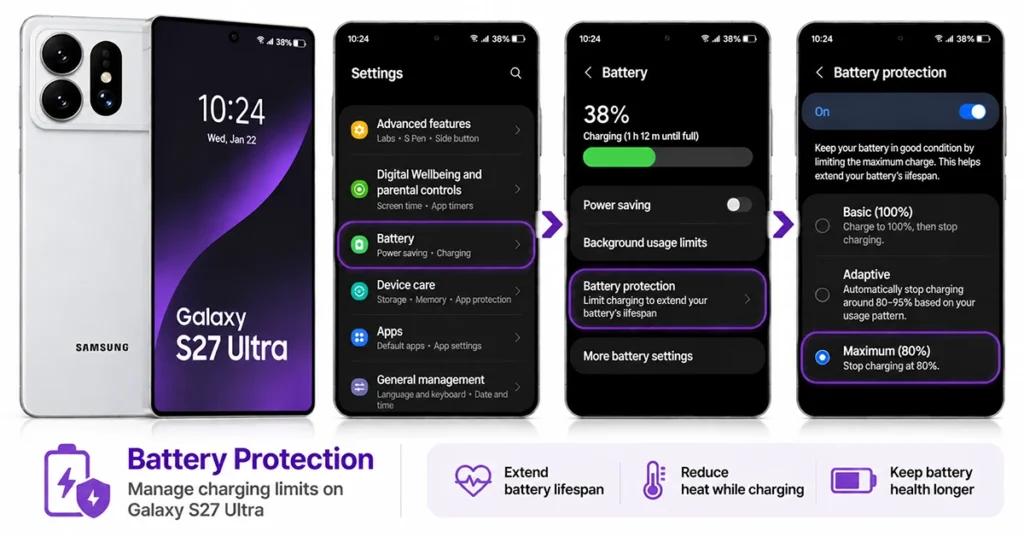
Next, check Battery protection. It caps the maximum charge level to preserve battery lifespan, so a phone that stops at 80% or 85% may be working as designed. Switch it to Basic or turn it off if you want a full charge.
6. Test wireless charging and Wireless PowerShare
If the cable fails, put the phone on a Qi or Qi2 wireless charger. If wireless works, the problem is probably the port or cable.
If wireless is the part that fails, remove thick cases, metal plates, or card holders, and center the phone on the pad.
Another test is Wireless PowerShare: if the phone can’t charge earbuds either, an internal fault becomes more likely.
7. Update the software
Go to Settings > Software update > Download and install. New phones can ship with early software bugs, and Samsung often releases updates that fix them.
Keep the phone on Wi-Fi and above 30% charge, or connected to a working power source, while updating.
8. Run diagnostics and try Safe mode
Open the Samsung Members app and run Phone diagnostics to test the battery and charging hardware. Self-diagnosis requires a Galaxy device with the Samsung Members app installed.
You can also boot into Safe mode: hold the power button, press and hold Power off, then tap Safe mode. If the phone charges normally there, a third-party app is likely interfering.
Restart normally and uninstall recently added apps one at a time.
9. Back up and factory reset (last resort)
If every fix has failed and you suspect software, back up with Smart Switch or Samsung Cloud, then go to Settings > General management > Reset > Factory data reset.
If the phone still won’t charge after a clean reset, the cause is almost certainly hardware.
Galaxy S27 Ultra Charging Slowly Instead of Not Charging?
Slow charging is usually fixable with the same steps. The four biggest causes are a low-wattage adapter, a charge-only or worn cable, heat, and fast charging being turned off.
Use an adapter rated for the S27 Ultra’s maximum speed, remove the case during charging, and avoid using the phone heavily while it charges. Wireless charging is always slower than wired, so judge speed by the cable.
When to Contact Samsung Service
Stop troubleshooting and book a repair if you notice any of these:
- The phone won’t charge with a known-good cable, adapter, and wireless pad.
- The USB-C port is bent, loose, or visibly damaged.
- The phone gets unusually hot, smells, or the back looks swollen (stop using it immediately).
- The phone has been exposed to liquid and the moisture warning persists.
- The problem continues after a factory reset.
Check your warranty status first, since battery and port faults may be covered.
How to Prevent Charging Problems
- Check and clean the USB-C port every few weeks.
- Use Samsung-approved or well-reviewed certified cables and adapters.
- Don’t charge in direct sun, in a hot car, or under a pillow.
- Install software updates promptly.
- Don’t yank the cable out at an angle.
Frequently Asked Questions
Why does my Galaxy S27 Ultra show the charging icon but the percentage doesn’t rise?
The adapter and phone are connecting, but power delivery is weak or being throttled. Try another adapter and cable, clean the port, and let the phone cool.
Can a software update fix a Galaxy S27 Ultra that won’t charge?
Yes, if the cause is a bug. Install the latest update, and if charging broke right after one, force restart and run diagnostics.
Is it safe to charge after a “moisture detected” warning?
No. Unplug, dry the phone, and wait until the warning clears.
How long should I charge a completely dead S27 Ultra?
Give it up to 30 minutes on a working charger. If nothing appears, force restart it.
Final Thoughts
If your Galaxy S27 Ultra is not charging, start by checking the USB-C cable, power adapter, and charging port. Then investigate moisture detection, battery protection, overheating, and software issues. Testing wireless charging and running Samsung Members diagnostics can help narrow down the problem.
If none of these solutions restores normal charging, contact an authorized Samsung service center. Identifying the underlying cause before replacing parts can save time and prevent unnecessary repair expenses.
Reference:
- Samsung Support – What to do if your phone is not charging.
- Samsung Support – Charging while connected to a PC.