Power Saving Mode on Galaxy S27 Ultra helps extend battery life by reducing background activity, limiting certain system functions, and lowering power consumption. You can enable it through Settings > Battery > Power saving or access it through the Quick Panel for faster activation. You can also customize available options to balance battery performance with everyday usability.
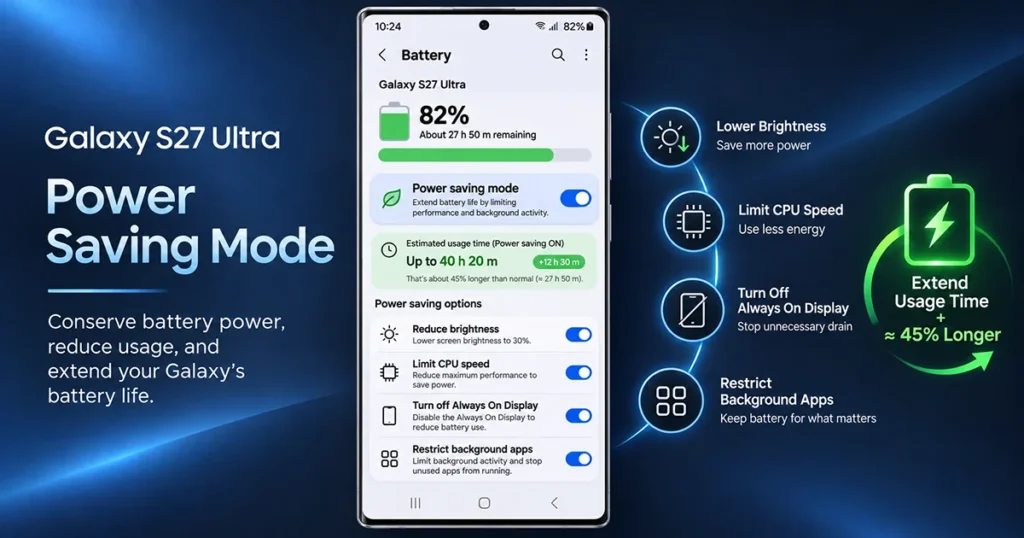
Whether you are traveling, working outdoors, or dealing with a low battery, Power Saving Mode helps your Galaxy S27 Ultra stay powered for longer when a charger is unavailable.
What Is Power Saving Mode on Galaxy S27 Ultra?
Power Saving Mode is a built-in battery management feature designed to reduce unnecessary energy consumption. When enabled, it limits selected background activities and power-intensive functions to help your Galaxy S27 Ultra conserve battery.
Depending on your software version and available settings, Power Saving Mode can restrict background network usage, reduce processing performance, disable Always On Display, and lower screen brightness.
The feature is particularly useful when your battery percentage is low or you need your phone to last throughout a long day.
Unlike Airplane Mode, Power Saving Mode does not completely disconnect your smartphone from cellular networks. You can continue using essential features, including phone calls and other supported communication services, although some background activities may be restricted.
How to Enable Power Saving Mode on Galaxy S27 Ultra
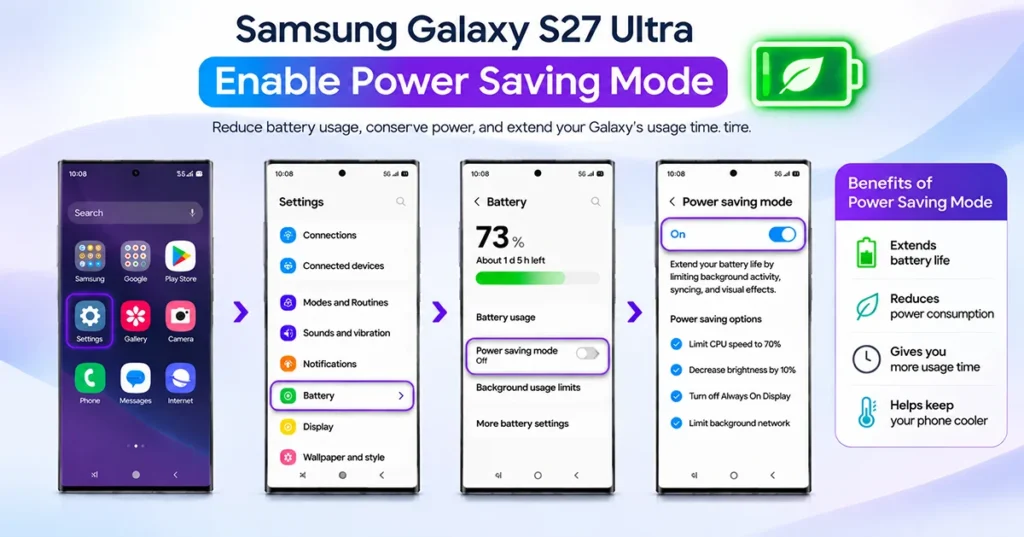
You can turn on Power Saving Mode directly from the Battery settings. Follow these instructions:
- Open the Settings app on your Samsung Galaxy S27 Ultra.
- Scroll down and tap Battery.
- Find the Power saving option.
- Tap the Power saving switch to enable the feature.
- Review the available battery-saving options.
- Adjust the settings according to your preferences.
Once activated, your phone will begin applying the selected power-saving restrictions.
Tip: If you frequently run out of battery while traveling, enable Power Saving Mode before leaving home rather than waiting until your battery reaches a critically low level.
How to Turn On Power Saving Mode Using Quick Panel
The Quick Panel provides a faster way to activate battery-saving features without navigating through multiple settings menus.
Follow these steps:
- Swipe down from the top of your Galaxy S27 Ultra screen to open the Quick Panel.
- Swipe down again if necessary to expand all available shortcuts.
- Find the Power saving button.
- Tap the button to activate Power Saving Mode.
- Check the battery icon or settings screen to confirm that it is enabled.
If you cannot find the Power saving shortcut, tap the Edit button or pencil icon to customize the Quick Panel and add the available shortcut.
How to Customize Power Saving Mode on Galaxy S27 Ultra
The Galaxy S27 Ultra offers battery-saving controls that let you choose which functions should be restricted. Available options may vary depending on the installed One UI version.
You can review the Power saving menu under Settings > Battery > Power saving.
| Setting | What It Does | Battery Benefit |
|---|---|---|
| Turn off Always On Display | Disables the always-visible screen information | Reduces display power consumption |
| Limit CPU speed | Reduces maximum processor performance | Helps lower processing power usage |
| Decrease brightness | Reduces screen brightness | Saves display energy |
| Turn off 5G | Restricts 5G connectivity when supported | May reduce network power consumption |
| Limit apps and Home screen | Restricts available apps and background activity | Provides more aggressive battery savings |
| Put unused apps to sleep | Limits activity from infrequently used applications | Reduces unnecessary background consumption |
To get the best results, consider disabling Always On Display, reducing screen brightness, and limiting unnecessary background activity.
You do not necessarily need to activate every available option. Choose settings that provide meaningful battery savings without interfering with the way you use your phone.
How to Turn Off Power Saving Mode on Galaxy S27 Ultra
You can disable Power Saving Mode whenever you need the full performance and functionality of your smartphone.
There are two convenient methods.
Method 1: Using Settings
- Open Settings.
- Tap Battery.
- Select Power saving.
- Tap the switch to turn the feature off.
Method 2: Using Quick Panel
- Swipe down from the top of the screen.
- Expand the Quick Panel if necessary.
- Find the Power saving shortcut.
- Tap it to disable the feature.
After turning it off, restricted background activities and selected system functions can return to their normal behavior.
Tips to Extend Battery Life on Galaxy S27 Ultra
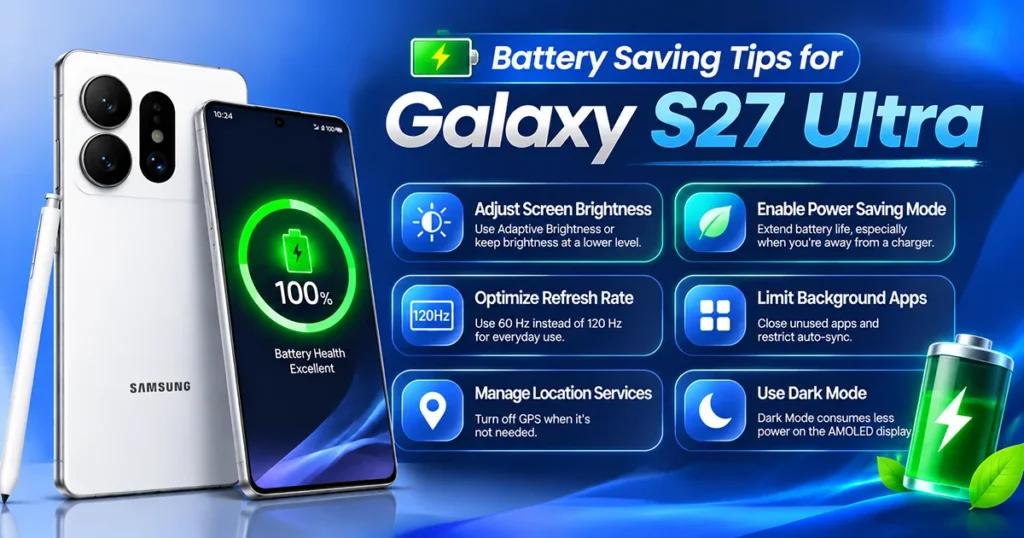
Power Saving Mode is useful, but you can combine it with other battery optimization settings to reduce power consumption further.
1. Reduce Screen Brightness
The display can consume considerable battery power, especially when brightness is high. Open Settings > Display and lower the brightness to a comfortable level.
You can also enable Adaptive brightness to let your phone adjust screen brightness based on surrounding lighting conditions.
2. Reduce Screen Timeout
A shorter screen timeout prevents your display from remaining active when you are not using the device.
Navigate to Settings > Display > Screen timeout and choose a shorter duration, such as 30 seconds.
3. Put Unused Apps to Sleep
Some applications continue running background processes even when you are not actively using them.
To manage these apps:
- Open Settings.
- Tap Battery.
- Select Background usage limits.
- Open Sleeping apps or Deep sleeping apps.
- Add applications that you rarely use.
Remember that deep sleeping apps may not deliver notifications or update information until you open them.
4. Use Dark Mode
Dark Mode changes supported menus and interfaces to darker colors. On OLED displays, darker interface elements can help reduce display power consumption.
Open Settings > Display and select Dark mode.
5. Check Battery Usage
If your Galaxy S27 Ultra loses battery unusually quickly, identify which applications consume the most power.
Go to Settings > Battery and review the battery usage information. Restrict or uninstall applications that consume excessive power without providing useful functionality.
When Should You Use Power Saving Mode?
Power Saving Mode is not something you need to keep enabled all the time. Its usefulness depends on your daily activities and battery requirements.
Consider enabling it in these situations:
- Traveling: Extend battery life when you cannot access a charger.
- Outdoor activities: Keep your phone available for navigation and communication.
- Low battery: Conserve remaining power when your battery percentage becomes low.
- Long working days: Reduce unnecessary background activity during extended periods away from a power outlet.
- Emergency situations: Preserve battery for essential calls and messages.
If you regularly use demanding applications, play graphics-intensive games, or rely on instant background notifications, consider using a less restrictive configuration.
Does Power Saving Mode Affect Galaxy S27 Ultra Performance?
Yes. Power Saving Mode can affect device performance because it reduces or restricts selected system activities.
For example, limiting processor speed may make demanding applications feel less responsive. Background synchronization restrictions can also delay notifications, email updates, and other app information.
However, essential smartphone functions remain available, subject to the restrictions applied by your selected settings.
If you need maximum performance for gaming, video editing, or other demanding tasks, consider turning off Power Saving Mode temporarily.
Frequently Asked Questions
Does Power Saving Mode improve battery life on Galaxy S27 Ultra?
Yes. It can extend battery life by reducing background activity, limiting selected hardware functions, and lowering power consumption. The actual improvement depends on your usage patterns and selected settings.
Can I use Power Saving Mode while charging?
Yes. You can enable Power Saving Mode while your Galaxy S27 Ultra is connected to a charger. It can help reduce energy consumption while the phone is charging.
Does Power Saving Mode turn off mobile data?
Not necessarily. It can restrict background network activity for applications, but it does not automatically mean that all mobile data connectivity is disabled.
Will I still receive calls and messages?
Yes, essential communication functions remain available. However, notifications from certain applications may be delayed because background activity and synchronization can be restricted.
Is it safe to keep Power Saving Mode enabled all day?
Generally, yes. It is a built-in battery management feature. However, keeping it enabled may affect performance, background updates, and certain display functions.
What is the difference between Power Saving Mode and Battery Protection?
Power Saving Mode reduces current energy consumption to extend the time between charges. Battery Protection focuses on managing charging behavior to help maintain long-term battery health.
Final Thoughts
Power Saving Mode is a useful feature for extending the battery life of your Samsung Galaxy S27 Ultra. By limiting background activity, reducing selected power-intensive functions, and adjusting performance settings, you can conserve battery when charging is not convenient.
For everyday use, start by enabling Power Saving Mode and adjusting options such as Always On Display, screen brightness, and background app activity. You can always disable the feature when you need the full performance of your smartphone.
Reference:
- Samsung – Samsung battery troubleshooting.
- Samsung – What Is Power Saving Mode?.
2 thoughts on “Power Saving Mode on Samsung Galaxy S27 Ultra: How to Enable and Customize It”