The best Galaxy S27 Ultra battery settings can help you extend screen-on time, reduce unnecessary background power consumption, and maintain long-term battery health. Start by checking battery usage, enabling Battery Protection, managing background apps, adjusting display settings, and customizing Power Saving Mode. These settings can help you get more from every charge without sacrificing essential smartphone features.
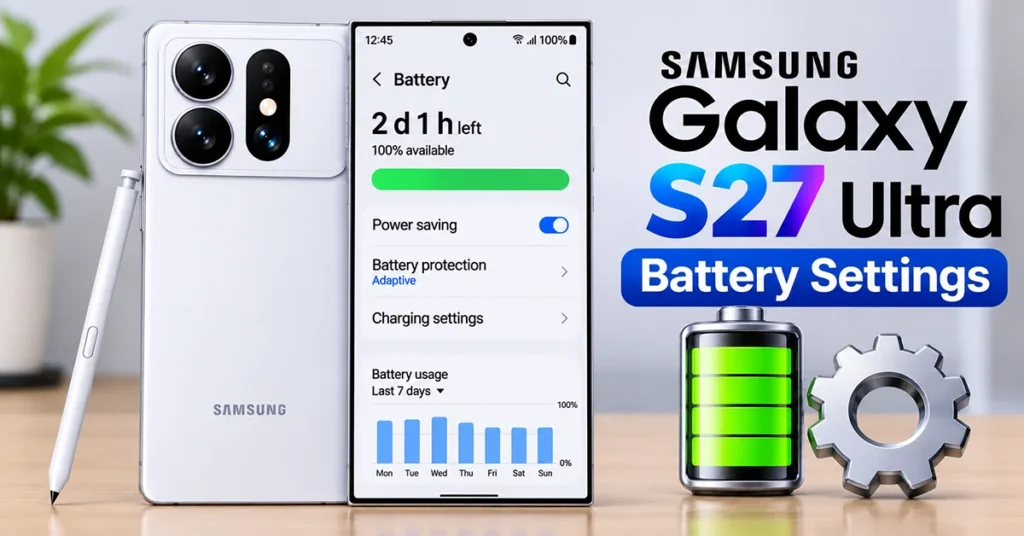
Samsung has not officially confirmed the Galaxy S27 Ultra’s final software or battery settings as of November 2026. The instructions below are based on Samsung’s existing Galaxy battery-management features. Menu names and availability may differ when the S27 Ultra launches.
How to Access Galaxy S27 Ultra Battery Settings
You can manage battery consumption through the Settings application. On recent Galaxy phones, most battery controls are available in the Battery menu.
Follow these steps:
- Open Settings on your Galaxy phone.
- Scroll down and tap Battery.
- Review the battery usage information.
- Open the available battery management options.
- Adjust charging protection, power saving, and background usage settings as needed.
Depending on the final One UI software, some options may appear under Device care or another submenu.
Best Battery Settings to Improve Galaxy S27 Ultra Battery Life
If you want longer battery life without constantly activating Power Saving Mode, start with these settings.
1. Enable Battery Protection
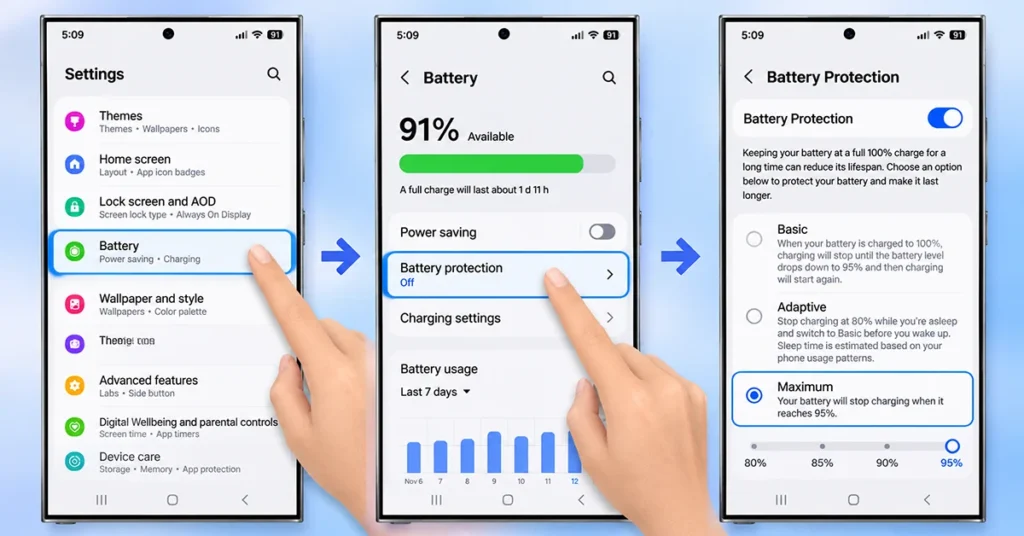
Battery Protection helps preserve battery health by controlling how your phone charges. Keeping a lithium-ion battery at 100% for extended periods can contribute to battery aging.
Samsung’s existing Galaxy phones offer three Battery Protection modes:
- Basic: Stops charging at 100% and resumes when the battery drops to 95%.
- Adaptive: Adjusts charging behavior around your sleeping schedule, using a more restrictive limit while you sleep and completing charging before you wake up.
- Maximum: Limits charging to a selected maximum level, helping reduce prolonged full-charge periods.
To configure this feature, use the following navigation if available:
- Open Settings.
- Tap Battery.
- Select Battery Protection.
- Enable the feature.
- Choose your preferred protection mode.
For everyday use, Adaptive is a convenient option if you follow a consistent sleeping schedule. Maximum is worth considering if you usually have enough battery for the day and prioritize long-term battery health.
2. Customize Power Saving Mode
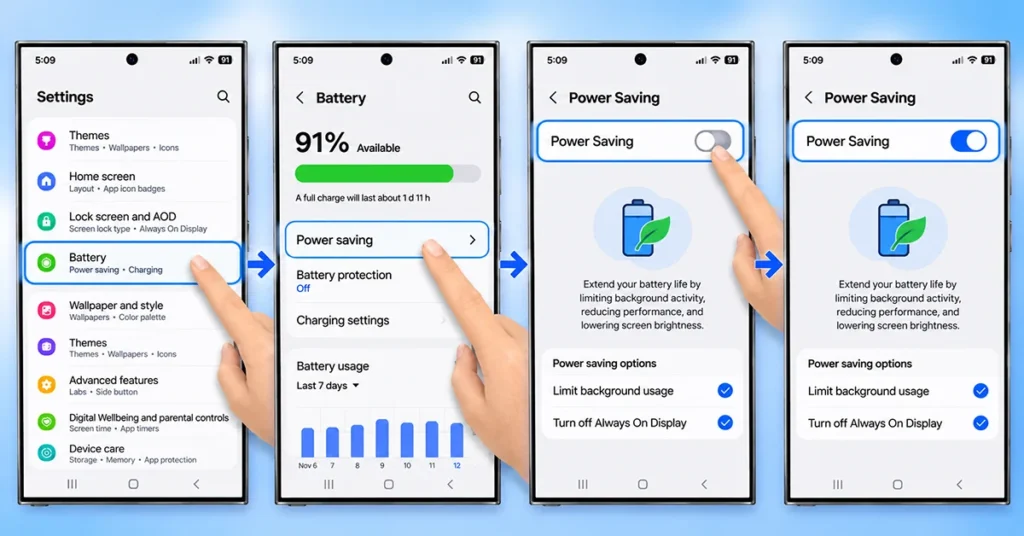
Power Saving Mode reduces battery consumption by restricting certain background activities and power-intensive features.
To enable it:
- Open Settings.
- Select Battery.
- Tap Power Saving.
- Enable the Power Saving switch.
- Review the available restrictions and customize them.
Depending on the software, available restrictions may include limiting CPU speed, reducing screen brightness, disabling Always On Display, and restricting background network activity.
Use this mode when your battery is running low or when you need your phone to last longer without access to a charger.
Remember that aggressive power-saving restrictions can delay notifications and background updates.
3. Manage Background App Usage
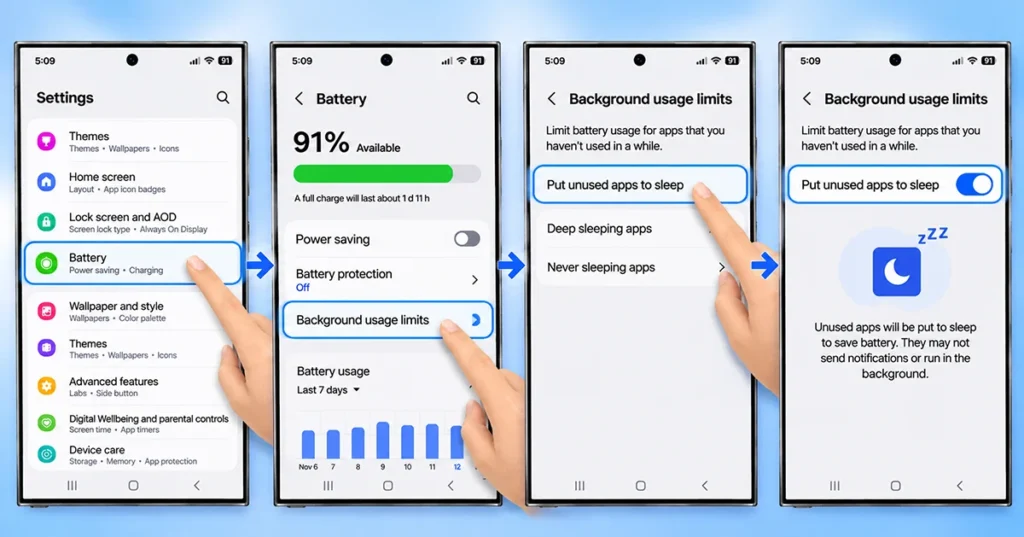
Some applications continue using battery power even when you are not actively using them. Social media, shopping, streaming, and other frequently connected apps can contribute to unnecessary background consumption.
Samsung provides background usage controls on supported Galaxy devices.
To manage these applications:
- Open Settings.
- Tap Battery.
- Select Background usage limits.
- Enable Put unused apps to sleep.
- Review the Sleeping apps and Deep sleeping apps lists.
- Add applications you rarely use.
Sleeping apps have restricted background activity, while Deep sleeping apps generally run only when opened manually.
Avoid placing essential messaging, navigation, and work applications into Deep sleeping mode if you rely on their notifications.
4. Adjust Display Settings
The display is an important factor in smartphone battery consumption. High brightness, extended screen time, and demanding display features can increase power usage.
Consider these adjustments:
- Enable Adaptive Brightness to automatically adjust screen brightness.
- Reduce Screen Timeout to 15 or 30 seconds.
- Use Dark Mode if you prefer a darker interface.
- Reduce brightness when using the phone indoors.
- Disable Always On Display if you rarely need it.
These adjustments can reduce unnecessary screen power consumption while keeping the phone comfortable to use.
5. Use Light Performance Profile
If the Galaxy S27 Ultra includes Samsung’s existing Light performance profile, consider enabling it when maximum processing speed is unnecessary.
On supported Galaxy devices, the Light profile prioritizes battery efficiency and thermal management over maximum processing performance.
The expected navigation, based on current Galaxy software, is:
- Open Settings.
- Tap Device care.
- Select Performance profile.
- Choose Light, if available.
This option is particularly useful for everyday activities such as browsing, reading, messaging, and watching videos. It is not intended to replace dedicated gaming performance settings.
Best Galaxy S27 Ultra Battery Settings at a Glance
The following table summarizes the recommended configuration. These are practical recommendations, not confirmed factory settings for the unreleased phone.
| Battery setting | Recommended configuration | Main benefit |
|---|---|---|
| Battery Protection | Adaptive or Maximum | Long-term battery health |
| Power Saving Mode | Enable when needed | Reduce power consumption |
| Background usage | Sleep unused apps | Reduce background drain |
| Adaptive Brightness | On | Manage display brightness |
| Screen Timeout | 15–30 seconds | Reduce screen-on time |
| Dark Mode | On, if preferred | Potential display power savings |
| Light Performance | On, if available | Improve everyday efficiency |
| Always On Display | Off, if unnecessary | Reduce standby consumption |
How to Check Galaxy S27 Ultra Battery Usage
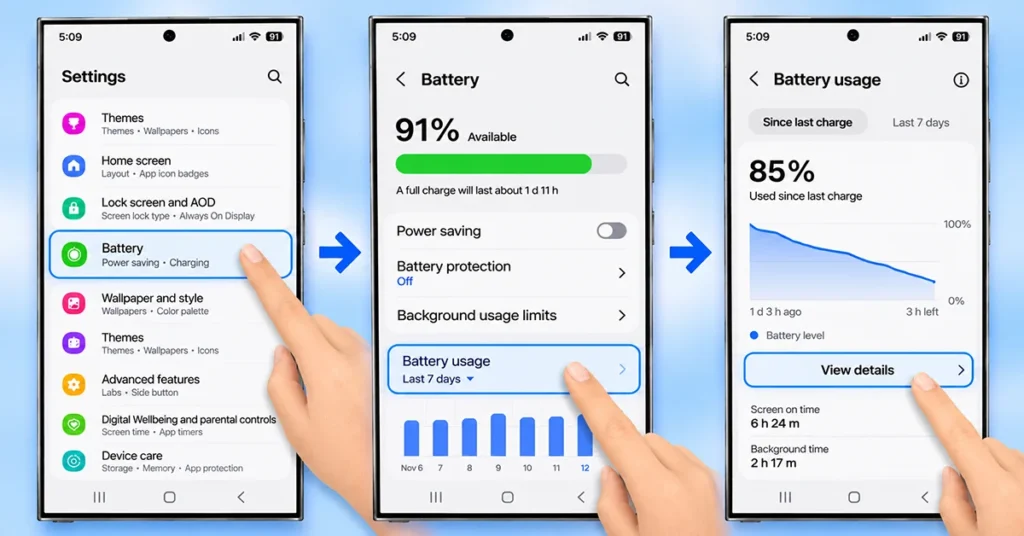
If your battery drains faster than expected, check which applications consume the most power before changing multiple settings.
Follow these steps if the feature is available in the final software:
- Open Settings.
- Tap Battery.
- Review the battery usage graph.
- Select View details, if available.
- Identify applications with unusually high consumption.
- Restrict background activity or uninstall applications you no longer need.
Pay attention to screen-on time, screen-off consumption, and applications that remain active when you are not using your phone.
Samsung Members may also provide battery diagnostics on supported devices.
How to Fix Galaxy S27 Ultra Battery Drain
If your phone loses battery unusually quickly, try these troubleshooting steps:
Update your software.
Install available system and application updates because they may include battery optimization improvements.
Restart your phone
A restart can resolve temporary software problems and unwanted background activity.
Check your network connection
Weak cellular signals can increase power consumption because your phone works harder to maintain connectivity
Review recently installed apps
An application that behaves incorrectly can consume excessive power in the background.
Use Power Saving Mode
Enable it temporarily when you need additional battery endurance.
Check battery diagnostics
Use Samsung Members if available to check the battery’s reported condition.
New Galaxy phones may also consume more power during their first few days as applications and system services finish optimizing.
Frequently Asked Questions
What are the best battery settings for Galaxy S27 Ultra?
Start with Adaptive Battery Protection, Adaptive Brightness, shorter screen timeout, background app management, and customized Power Saving Mode. These settings offer a practical balance between battery endurance and everyday usability.
Should I charge my Galaxy S27 Ultra to 100%?
You can charge your phone to 100% when you need the maximum available capacity. However, using a charging protection limit can help reduce the time the battery spends at full charge and support long-term battery health.
Does Dark Mode improve Galaxy S27 Ultra battery life?
Dark Mode can reduce display power consumption on AMOLED screens, particularly when using darker interfaces. The actual improvement depends on brightness, content, and usage habits.
Why does my Galaxy S27 Ultra battery drain overnight?
Potential causes include background applications, weak network signals, location services, synchronization, and software activity. Review battery usage and background app restrictions to identify the cause.
Where can I find Battery Protection on Galaxy S27 Ultra?
On supported recent Galaxy software, open Settings > Battery > Battery Protection. The final S27 Ultra menu location and available options should be checked against Samsung’s official documentation after release.
Final Thoughts
The best Galaxy S27 Ultra battery settings combine charging protection, background app management, display optimization, and Power Saving Mode. Start with the settings that have the least impact on your everyday experience, then apply stronger restrictions when necessary.
Because Samsung has not officially confirmed the Galaxy S27 Ultra’s final software, check the device’s retail documentation for exact menu names and available features before following model-specific instructions.
References:
- Samsung – Samsung battery optimization guide.
- Samsung – Samsung Battery Protection guide.
- Samsung – Samsung battery troubleshooting.
3 thoughts on “Samsung Galaxy S27 Ultra Battery Settings: Best Ways to Improve Battery Life”